

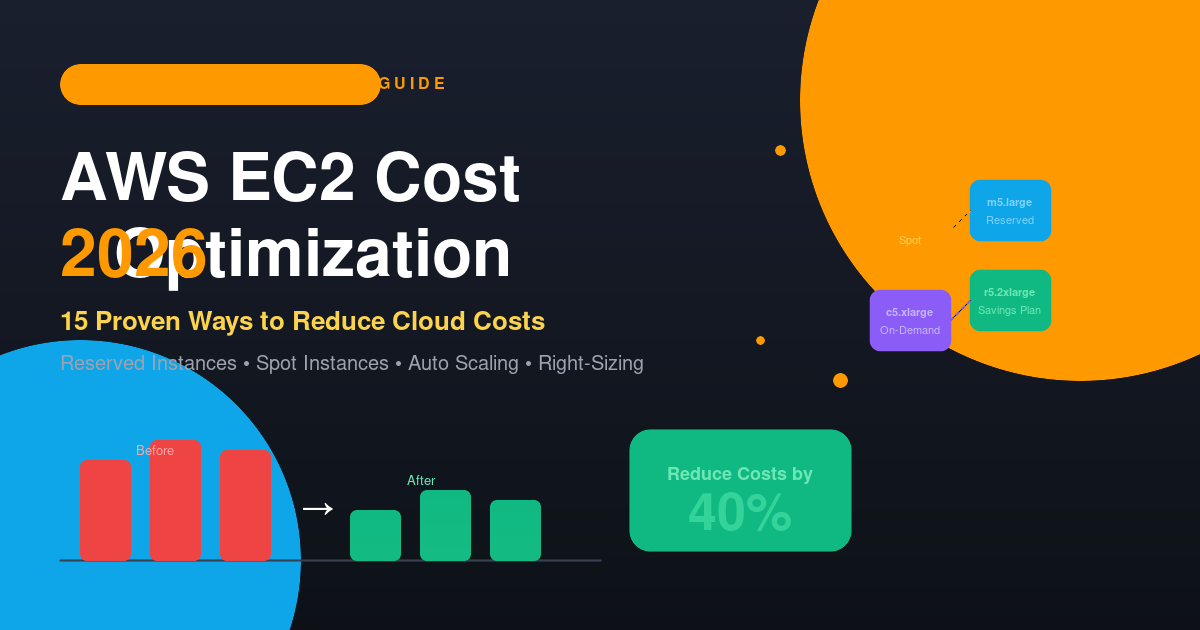
Written by the Softwarestech Cloud Engineering Team — reviewed by our AWS-certified solutions architects. Last updated: June 2026.
Our cloud engineers manage AWS environments for dozens of client accounts, collectively running thousands of EC2 instances across production, staging, and dev. Every strategy in this guide is one we apply directly during client cost audits — not theory pulled from documentation.
Key Takeaways
- EC2 is usually 40-60% of total AWS spend — and 20-40% of that is typically avoidable waste.
- Right-sizing is the single highest-impact, lowest-risk fix — often a 50-75% reduction per oversized instance.
- Combine Savings Plans (baseline) + Spot Instances (burst/batch) for the best blend of discount and flexibility — savings of 50-70% on compute are realistic.
- Automation beats one-time cleanups. Manual audits find waste once; Lambda + EventBridge + Infrastructure as Code keep it from coming back.
- Visibility tools are free. Compute Optimizer, Cost Explorer, and Trusted Advisor’s cost checks cost nothing and should be checked monthly.
Quick Answer: 15 Ways to Reduce AWS EC2 Costs (At a Glance)
The fastest ways to cut AWS EC2 costs are: (1) right-size oversized instances, (2) buy Reserved Instances for stable workloads, (3) use Savings Plans for flexible discounts, (4) run fault-tolerant workloads on Spot Instances, (5) enable Auto Scaling, (6) migrate EBS volumes from gp2 to gp3, (7) schedule dev/staging environments to shut down nightly, (8) switch to Graviton (ARM) instances, (9) use AWS Compute Optimizer, (10) monitor with CloudWatch, (11) review AWS Cost Explorer monthly, (12) act on Trusted Advisor recommendations, (13) automate resource cleanup, (14) manage infrastructure with Terraform/CloudFormation, and (15) consolidate billing under AWS Organizations.
If you’ve ever opened your AWS bill and felt your stomach drop, you’re not alone. EC2 is usually the single biggest line item on most companies’ AWS invoices — and in our experience working with startups and mid-size engineering teams, 30-40% of EC2 spend is pure waste. Oversized instances running at 8% CPU. Dev environments left running over the weekend. Unattached EBS volumes nobody remembers creating.
The good news? Almost all of this is fixable, and most fixes don’t require touching a single line of application code. This guide walks through 15 practical, battle-tested strategies — from right-sizing and Spot Instances to automation with Infrastructure as Code — that you can start applying this week.
Let’s get into it.
Why AWS EC2 Costs Spiral Out of Control
Before jumping into fixes, it helps to understand why EC2 bills creep up in the first place. It’s rarely one big mistake — it’s usually death by a thousand cuts:
- Instances provisioned for “peak load” that almost never hit peak load
- Reserved capacity bought two years ago for a workload that’s since changed
- Auto Scaling Groups configured once and never revisited
- Dev/test/staging environments running 24/7 even though nobody touches them after 7 PM
- EBS volumes left behind after instances are terminated
- No one on the team actually owns “cost” as a metric
💡 Expert Insight: “The accounts with the worst cost sprawl are almost never the ones with bad engineers — they’re the ones where cost simply isn’t anyone’s job. The moment a team adds a monthly ‘cost review’ to their sprint cadence, even a 15-minute one, spend stabilizes within a quarter.” — Softwarestech Cloud Engineering Team
None of these are dramatic on their own. But add them up across dozens (or hundreds) of instances, and you’re looking at thousands of dollars a month in avoidable spend. Let’s fix it, one strategy at a time.
1. Right-Sizing Your EC2 Instances

Featured snippet: Right-sizing is the practice of matching an EC2 instance’s vCPU, memory, and network capacity to its actual measured usage — rather than the capacity it was originally provisioned with. It typically requires no application changes, can be done with zero downtime for many instance families, and is the single highest-ROI AWS cost optimization available.
Right-sizing is the single highest-impact, lowest-effort cost optimization you can do — and it’s almost always the first thing we check when auditing a client’s AWS account.
The idea is simple: match the instance type to the actual resource usage of the workload, not the resource usage you think it needs. Most teams provision generously “just in case” during initial setup, and then never revisit that decision again — sometimes for years.
How to find right-sizing opportunities
- Pull CPU, memory, and network utilization data from CloudWatch for the last 14-30 days
- Look for instances averaging under 40% CPU utilization with no memory pressure
- Cross-check with AWS Compute Optimizer (Strategy #9)
- Test the smaller instance type in staging before changing production
Real-world example
A SaaS startup we worked with was running their primary application servers on m5.2xlarge (8 vCPU, 32 GB RAM) instances. CloudWatch data showed average CPU utilization of 11% and memory usage peaking at 35%. We moved them to m5.large (2 vCPU, 8 GB RAM) — a 75% reduction in instance size — with zero impact on application performance.
| Instance Type | vCPU | Memory | On-Demand Price/hr (us-east-1) | Monthly Cost (730 hrs) |
|---|---|---|---|---|
| m5.2xlarge | 8 | 32 GB | $0.384 | $280.32 |
| m5.xlarge | 4 | 16 GB | $0.192 | $140.16 |
| m5.large | 2 | 8 GB | $0.096 | $70.08 |
That’s a saving of $210/month per instance — across a fleet of 10 instances, that’s over $2,500/month, or $30,000 a year, just from right-sizing.
Common right-sizing mistakes
- Right-sizing once and never again — usage patterns change as your product evolves
- Only looking at CPU and ignoring memory or network throughput
- Downsizing without checking burst behavior on T-family instances (CPU credits matter)
✅ Section takeaway: Right-sizing is free to evaluate (Compute Optimizer is built into every account) and usually pays for an entire cost-optimization initiative on its own. Do this first, before buying any RIs or Savings Plans — committing to a discount on an oversized instance just locks in the waste.
🚀 Not Sure Which Instances Are Oversized?
Our cloud engineers can run a free right-sizing analysis across your AWS account and show you exactly where the savings are — usually within 2-3 business days. Get a Free Cost Audit →
2. Reserved Instances (RIs): Lock In Savings for Predictable Workloads

If you have workloads that run 24/7 and aren’t going anywhere — your production database, core API servers, internal tools — Reserved Instances can cut your bill by up to 72% compared to On-Demand pricing.
You’re essentially making a commitment (“I’ll run this instance type in this region for 1 or 3 years”) in exchange for a steep discount. There are two main flavors:
| RI Type | Flexibility | Typical Discount | Best For |
|---|---|---|---|
| Standard RI | Locked to instance family/size | Up to 72% | Stable, unchanging workloads |
| Convertible RI | Can swap instance family/OS | Up to 54% | Workloads expected to evolve |
Reserved Instances: Pros and Cons
| Pros | Cons |
|---|---|
| Highest discount ceiling (up to 72%) | Requires 1- or 3-year commitment |
| Predictable, budgetable monthly cost | Standard RIs are locked to a specific instance family/size/AZ |
| Standard RIs can be resold on the RI Marketplace if no longer needed | Underused commitments become “sunk cost” waste |
| No change to how instances are launched (applies automatically) | Doesn’t help if your architecture changes significantly (e.g., containerizing, switching to Graviton) |
Practical tip
Don’t buy 3-year RIs for your entire fleet on day one. Start with a 1-year Convertible RI covering your baseline usage — the minimum number of instances you run even during quiet periods — and leave anything above that baseline on-demand or covered by Spot. You can always layer in more commitment once you have 6-12 months of stable usage data.
3. Savings Plans: More Flexible Than RIs

AWS introduced Savings Plans in 2019 specifically because Reserved Instances were too rigid for modern, fast-moving infrastructure. With a Compute Savings Plan, you commit to a dollar amount of compute usage per hour (e.g., “$10/hour”) for 1 or 3 years — and that commitment automatically applies across any instance family, size, OS, or even region, and extends to Fargate and Lambda.
Reserved Instances vs. Savings Plans
| Feature | Reserved Instances | Savings Plans |
|---|---|---|
| Discount level | Up to 72% | Up to 72% (Compute), up to 66% (EC2 Instance) |
| Applies across instance families | Only Convertible RIs | Yes (Compute Savings Plan) |
| Applies across regions | No | Yes (Compute Savings Plan) |
| Applies to Fargate/Lambda | No | Yes (Compute Savings Plan) |
| Commitment unit | Instance type/count | Dollar amount per hour |
| Resale on Marketplace | Yes (Standard RIs) | No |
Savings Plans: Pros and Cons
| Pros | Cons |
|---|---|
| Flexible across instance family, size, OS, and region | No resale option if your spend drops below commitment |
| Covers Fargate and Lambda in addition to EC2 (Compute Savings Plan) | Slightly lower ceiling than Standard RIs in some cases |
| Simple “set a dollar commitment” model — easier to budget | Requires reasonably accurate usage forecasting to avoid over-committing |
| Discount applies automatically, no manual instance matching | 1- or 3-year commitment still required for top-tier discounts |
Our recommendation for 2026: unless you have a very specific reason to lock into instance types (e.g., you got a great resale deal on the RI Marketplace), Compute Savings Plans are the better default for most teams. The flexibility alone is worth the marginal difference in discount percentage.
4. Spot Instances: Up to 90% Off for Fault-Tolerant Workloads

Featured snippet: Spot Instances let you use AWS’s spare EC2 capacity at discounts of up to 90% off On-Demand pricing, in exchange for accepting that AWS can reclaim the instance with as little as a 2-minute warning. They’re best suited for stateless, fault-tolerant, or interruption-tolerant workloads such as CI/CD runners, batch processing, and big data jobs.
- CI/CD build runners
- Batch processing and data pipelines
- Image/video rendering and transcoding
- Big data processing (EMR, Spark)
- Stateless web servers behind a load balancer (with a base of On-Demand/RI capacity)
Spot Instances: Pros and Cons
| Pros | Cons |
|---|---|
| Steepest possible discount (up to 90%) | Can be interrupted with ~2 minutes’ notice |
| Works seamlessly with Auto Scaling “mixed instance policies” | Not suitable for stateful workloads without replication |
| Ideal for CI/CD, batch, and big data jobs | Requires architecture that tolerates node loss gracefully |
| Spot Fleet automatically replaces interrupted capacity | Pricing varies by instance type, AZ, and time — needs monitoring |
Real-world example
A media company running nightly video transcoding jobs switched their EMR cluster’s task nodes from On-Demand c5.4xlarge instances to Spot. Their core nodes (which hold data and can’t be interrupted) stayed on On-Demand/RI, but the task nodes — which can be replaced mid-job without data loss — moved to Spot.
| Setup | Instance Type | Price/hr | Nodes | Monthly Cost |
|---|---|---|---|---|
| Before (all On-Demand) | c5.4xlarge | $0.68 | 10 | $4,964 |
| After (core On-Demand + task Spot) | c5.4xlarge (core: 2, task: 8 Spot ~$0.20) | $0.68 / ~$0.20 | 2 + 8 | $1,985 |
That’s roughly a 60% reduction on the cluster’s compute cost, with zero job failures over six months thanks to Spot Fleet’s automatic replacement of interrupted nodes.
Best practice: combine Spot with Auto Scaling
Use a mixed instance policy in your Auto Scaling Group — a base of On-Demand/RI capacity for reliability, with Spot Instances scaling in to handle the rest. This gives you cost savings and resilience against Spot interruptions.
5. Auto Scaling: Pay Only for What You Need, When You Need It

If you’re running a fixed number of EC2 instances 24/7 to handle traffic that fluctuates throughout the day, you’re overpaying — full stop.
Auto Scaling Groups (ASGs) automatically add or remove instances based on real demand, using metrics like CPU utilization, request count, or custom CloudWatch metrics.
A simple scaling policy that works for most web apps
- Target tracking policy: keep average CPU utilization at 50%
- Minimum capacity: enough instances to handle your quietest hours (e.g., 2)
- Maximum capacity: enough to handle your busiest traffic spike (e.g., 10)
- Scale-in cooldown: 5 minutes (avoids “flapping” — rapid scale up/down cycles)
Real-world example
An e-commerce client had 6 t3.large instances running constantly to handle a traffic pattern that peaked only during US business hours and around flash sales. We configured an ASG with a minimum of 2 and a maximum of 8 instances, scaling on a target CPU of 55%.
Average instance count dropped from a flat 6 to roughly 3.2 across the day — a ~47% reduction in compute hours — while actually improving performance during their Black Friday sale because the ASG scaled out automatically to 8 instances without anyone needing to manually intervene at 2 AM.
6. EBS Volume Optimization

EBS storage is one of the most overlooked areas of AWS cost — partly because it’s “only a few cents per GB,” and partly because nobody audits it until the bill is already big.
Migrate from gp2 to gp3
This is the easiest win on this entire list. AWS’s gp3 volumes are 20% cheaper per GB than gp2 and come with 3,000 IOPS and 125 MB/s throughput included by default — you only pay extra if you need more than that. Migration can be done live, with zero downtime, via the EC2 console or a simple aws ec2 modify-volume API call.
| Volume Type | Price per GB-month | Baseline IOPS | Baseline Throughput |
|---|---|---|---|
| gp2 | $0.10 | 3 IOPS/GB (max 16,000) | Up to 250 MB/s |
| gp3 | $0.08 | 3,000 (free) | 125 MB/s (free) |
For a 1 TB volume, that’s a drop from $100/month to $80/month — and most workloads don’t even need to pay extra for additional IOPS.
Find and remove unattached volumes
When you terminate an EC2 instance, its EBS volumes don’t automatically get deleted unless “Delete on Termination” is set. Over time, these orphaned volumes pile up — we’ve seen accounts with hundreds of unattached volumes costing $1,000+/month for storage nobody is using.
Run this AWS CLI command to find them:
aws ec2 describe-volumes
  --filters Name=status,Values=available
  --query 'Volumes[*].{ID:VolumeId,Size:Size,Type:VolumeType}'
  --output table
Set a snapshot lifecycle policy
Old EBS snapshots accumulate quietly. Use Amazon Data Lifecycle Manager (DLM) to automatically delete snapshots older than your retention requirement (e.g., keep daily snapshots for 7 days, weekly for a month).
🚀 Stop Paying for Storage You’re Not Using
Unattached volumes, orphaned snapshots, and idle Elastic IPs are some of the easiest savings to find — and the easiest to miss without the right tooling. Talk to Our Cloud Team →
7. Schedule Non-Production Environments
Here’s a number that surprises a lot of teams: a dev/staging environment running 24/7 costs the same as running it 24/7 — even though nobody is using it for roughly 16 hours a day and on weekends.
If your team works standard business hours (say, 8 AM – 8 PM, Monday-Friday), your dev/staging environments are sitting idle for roughly 75% of the week.
Set up automated start/stop schedules
Use AWS Instance Scheduler (a free CloudFormation-based solution from AWS) or a simple Lambda function triggered by EventBridge to stop instances at 8 PM and start them at 7 AM on weekdays only.
| Environment | Hours running (no schedule) | Hours running (scheduled) | Reduction |
|---|---|---|---|
| 24/7, 7 days | 730 hrs/month | — | — |
| 12 hrs/day, weekdays only | — | ~260 hrs/month | ~64% |
For a m5.xlarge dev environment ($140/month at 24/7), scheduling drops it to roughly $50/month — a saving of $90/month, per environment. Multiply that across dev, staging, QA, and demo environments, and it adds up fast.
8. Use Graviton (ARM-Based) Instances
Featured snippet: AWS Graviton processors are custom ARM-based chips (Graviton2 and Graviton3) that deliver up to 40% better price-performance than comparable x86 (Intel/AMD) EC2 instances. Most containerized and managed-runtime workloads (Node.js, Python, Java, Go, .NET) can migrate with little more than an arm64 rebuild.
| Instance Type | Architecture | Price/hr (us-east-1) | Relative Performance |
|---|---|---|---|
| m5.xlarge | x86 (Intel) | $0.192 | Baseline |
| m6g.xlarge | ARM (Graviton2) | $0.154 | Comparable or better |
| m7g.xlarge | ARM (Graviton3) | $0.163 | ~25% faster than m6g |
Graviton: Pros and Cons
| Pros | Cons |
|---|---|
| Up to 40% better price-performance vs. x86 | Native (compiled) dependencies need arm64 builds |
| Broad support across managed databases (MySQL, PostgreSQL, Redis) | Some legacy/proprietary software is x86-only |
| Most container base images already support arm64 | Requires a staging migration/test pass before production cutover |
| Lower price and often better performance simultaneously | CI/CD pipelines may need multi-arch build steps |
When Graviton makes sense
- Containerized workloads (Docker images need an arm64 build, but most popular base images support it)
- Workloads in interpreted/managed languages (Node.js, Python, Java, Go, .NET) — these generally “just work” on Graviton with minimal changes
- Databases like MySQL, PostgreSQL, Redis — all have official ARM support
When to be careful
- Workloads with native dependencies compiled for x86 only (some older binary blobs, certain proprietary software)
- Always test in staging first — for most teams, the migration is a recompile/rebuild, not a rewrite
9. Let AWS Compute Optimizer Do the Analysis For You

AWS Compute Optimizer is a free service that analyzes your CloudWatch metrics (CPU, memory if the CloudWatch agent is installed, network, disk I/O) and gives you specific, actionable recommendations: “this instance is over-provisioned, consider downsizing to X” or “this instance type would give you better price-performance.”
It’s not perfect — it needs at least 14 days (ideally 32 days) of metric history to give confident recommendations — but it’s a fantastic starting point if you don’t know where to begin. Enable it once at the account or organization level, and check back monthly.
It also has the benefit of giving you a risk score for each recommendation, so you’re not guessing whether downsizing might cause performance problems.
10. CloudWatch Monitoring: See Problems Before They Cost You
You can’t optimize what you can’t measure. CloudWatch is the foundation that almost every other strategy on this list depends on.
Metrics worth watching for cost optimization specifically
- CPUUtilization — sustained low usage = right-sizing candidate
- NetworkIn/NetworkOut — helps identify chatty services that might benefit from a different instance type or placement group
- EBS VolumeReadOps/WriteOps — helps determine if you actually need provisioned IOPS volumes
- StatusCheckFailed — instances that are unhealthy but still being billed
Set up cost-related alarms
A simple but effective alarm setup:
- Alert if an instance’s average CPU stays below 5% for 24 hours (likely idle/forgotten)
- Alert if a new instance type is launched outside your “approved” instance family list (cost governance)
- Use AWS Budgets (which integrates with CloudWatch) to alert when monthly spend crosses a threshold — e.g., 80% of your budget
✅ Section takeaway: If you only set up one alarm this week, make it a billing alarm at 80% of your monthly budget — it’s a 5-minute setup that turns “surprise bill at month-end” into “heads-up with three weeks to react.”
11. AWS Cost Explorer: Your Cost Investigation Tool

Cost Explorer is free and built into every AWS account, but most teams only open it when finance asks “why did the bill go up?” — by which point it’s already too late to act quickly.
How to use Cost Explorer proactively
- Group by Service to see which services dominate spend (usually EC2, then EBS, then data transfer)
- Group by Tag (e.g.,
Environment: productionvsEnvironment: dev, orTeam: backend) to see which teams or environments drive cost — this requires a solid tagging strategy - Use Forecasting to predict next month’s bill based on current trends — useful for catching runaway costs early
- Check the Savings Plans recommendations tab — Cost Explorer will tell you exactly how much Savings Plan coverage would save you based on your last 7/30/60 days of usage
A tagging strategy makes everything else easier
If your resources aren’t tagged with at least Environment, Team, and Project, Cost Explorer’s “Group by Tag” view will be mostly useless. This is one of those things that takes 30 minutes to set up via an IaC tagging policy but pays dividends for years (see Strategy #14).
12. AWS Trusted Advisor: Your Free Cost Audit

Trusted Advisor is built into AWS and — even on the free Basic Support plan — gives you a “Cost Optimization” category covering:
- Idle load balancers (ELBs with no healthy targets)
- Underutilized EC2 instances
- Unassociated Elastic IP addresses (these cost money when not attached to a running instance!)
- Low-utilization Amazon RDS instances
- Unused EBS volumes
With Business or Enterprise support, you get the full suite of Trusted Advisor checks, plus the ability to set up weekly email digests so cost issues land in your inbox automatically instead of requiring someone to remember to check.
Quick win: Elastic IPs are free while attached to a running instance, but cost roughly $0.005/hour (about $3.60/month) when unattached or attached to a stopped instance. It sounds tiny, but accounts that have been around for a few years often have 20-50 of these floating around — that’s $70-180/month for literally nothing.
13. Automate Resource Cleanup
Manual cleanup doesn’t scale, and it doesn’t stick — someone does a cleanup sprint, costs drop, and six months later the same junk has accumulated again. The fix is automation.
What to automate
- Unattached EBS volumes older than X days → snapshot, then delete
- Unassociated Elastic IPs → release automatically (with a Slack notification first, in case it’s intentional)
- Old AMIs and their underlying snapshots → deregister AMIs not used in 90+ days
- Stopped instances that have been stopped for 30+ days → flag for review or terminate
- Empty Auto Scaling Groups and unused Load Balancers → flag for removal
A simple pattern: Lambda + EventBridge
Set up a scheduled EventBridge rule (e.g., “every Monday at 6 AM”) that triggers a Lambda function to scan for these patterns using the AWS SDK, and either:
- Automatically clean up low-risk items (e.g., truly orphaned EBS snapshots), or
- Post a report to Slack/email for items that need human judgment (e.g., a stopped instance that might be someone’s important POC)
💡 Expert Insight: “The teams that keep their AWS bill flat month-over-month aren’t the ones who do a big cleanup once a year — they’re the ones who automated the boring 80% and only get pinged for the ambiguous 20%. That’s the difference between a cost project and a cost culture.” — Softwarestech Cloud Engineering Team
This combination of “auto-fix the obvious stuff, flag the ambiguous stuff” tends to get the best buy-in from engineering teams — nobody likes waking up to find their experiment got deleted overnight.
14. Infrastructure as Code: The Long-Term Cost Control Strategy
Everything above is reactive — you’re finding and fixing waste that already exists. Infrastructure as Code (IaC) tools like Terraform, AWS CloudFormation, and AWS CDK help prevent waste from being created in the first place.
How IaC reduces cloud costs
- Consistent tagging by default — bake
Environment,Team, andCostCentertags into your modules so every resource is tagged automatically, making Cost Explorer actually useful (see Strategy #11) - Standardized instance types — define an “approved list” of instance families in your modules so engineers can’t accidentally spin up an
x1e.32xlarge($26+/hour) when they meantx1e.xlarge - Ephemeral environments — spin up a full staging environment for a pull request, run tests, then
terraform destroyit automatically — instead of leaving a permanent staging environment running for every feature branch - Drift detection —
terraform planshows you when someone’s made manual changes in the console (often the source of “mystery” cost increases) - Code review for infrastructure changes — a teammate reviewing a PR that adds a new
m5.4xlargeASG with a max size of 50 might just save you from a very bad weekend
Real-world example
A client managing infrastructure manually through the console had 47 EC2 instances across 3 AWS accounts, with no consistent tagging and several duplicate security groups, NAT gateways, and load balancers per environment. After migrating to Terraform with standardized modules, they discovered (and removed) 11 redundant resources — including 3 NAT gateways at ~$32/month each just in NAT gateway hourly charges, before even counting data processing fees.
15. Consolidated Billing & AWS Organizations
If your company runs multiple AWS accounts (common for separating production, staging, and per-team environments — which is good practice for security), make sure they’re linked under a single AWS Organizations management account with consolidated billing enabled.
Why this matters for cost
- Reserved Instance and Savings Plan discounts apply across all linked accounts — if Team A has unused RI capacity and Team B is running On-Demand instances of the same type, the discount automatically applies to Team B’s usage too
- Volume pricing tiers combine — services like S3 and data transfer have pricing that decreases at higher usage tiers; consolidated billing lets all accounts collectively reach those discount thresholds faster
- Single view of total spend across the organization, with the ability to drill down per account
This is a “set it up once” strategy — but for organizations running 3+ AWS accounts without consolidated billing, this alone can unlock 5-15% in savings just from better utilization of existing commitments.
Quick Reference: Which Strategy for Which Workload?
| Workload Type | Best Strategies |
|---|---|
| Production database (always-on) | Reserved Instances / Savings Plans, right-sizing, gp3 |
| Stateless web app (variable traffic) | Auto Scaling, Savings Plans for baseline, Spot for burst |
| CI/CD, batch jobs, rendering | Spot Instances, Graviton |
| Dev/staging/QA environments | Scheduling (start/stop), right-sizing |
| Multi-account organization | Consolidated billing, IaC standardization |
Practical AWS Cost Optimization Checklist
Use this checklist to turn the 15 strategies above into an action plan. It’s organized by effort/impact so you can start seeing savings within days, not months.
This Week — Quick Wins (Low Risk, Free Tools)
- Enable AWS Compute Optimizer at the account/organization level
- Migrate gp2 EBS volumes to gp3 (live, zero-downtime)
- Find and release unassociated Elastic IPs
- Find and remove (after snapshotting) unattached EBS volumes
- Set a CloudWatch billing alarm at 80% of your monthly budget
- Run Trusted Advisor’s Cost Optimization checks and triage results
This Month — Medium Effort
- Right-size your top 10 instances by lowest CPU utilization
- Set up start/stop schedules for dev, staging, and QA environments
- Apply consistent
Environment/Team/Projecttags across resources - Review Cost Explorer’s Savings Plan recommendations and purchase coverage for your baseline
- Set up an EBS snapshot lifecycle policy via Data Lifecycle Manager
This Quarter — Strategic
- Pilot Graviton (ARM) for one stateless service or container workload
- Move CI/CD runners and batch jobs to Spot Instances
- Stand up a Lambda + EventBridge job for automated resource cleanup
- Migrate at least one environment to Terraform/CloudFormation with tagging baked in
- Enable AWS Organizations consolidated billing (if running multiple accounts)
- Add a recurring monthly “Cost Review” to your team’s calendar
Conclusion
AWS cost optimization isn’t a one-time project — it’s an ongoing discipline. The teams that keep their cloud bills under control aren’t necessarily running smaller infrastructure; they’re running infrastructure that’s continuously matched to actual demand, backed by automation and visibility.
Start with the highest-impact, lowest-risk wins: right-sizing, gp3 migration, and cleaning up unattached EBS volumes and Elastic IPs can usually be done this week with minimal risk. Then layer in Reserved Instances or Savings Plans for your stable baseline, Spot Instances for fault-tolerant workloads, and Auto Scaling everywhere traffic fluctuates. Finally, invest in CloudWatch monitoring, Cost Explorer reviews, and Infrastructure as Code so the savings stick instead of slowly eroding back to where you started.
🚀 Ready to See Your Own Savings Numbers?
If your team doesn’t have the bandwidth to run a full cost audit internally, that’s exactly the kind of engagement our cloud and DevOps engineers at Softwarestech handle regularly — from one-time cost audits to fully managed AWS environments built on Terraform from day one. We’ve also helped businesses streamline their broader IT services and infrastructure strategy alongside cloud cost reviews.
Either way, the money you save starts compounding the moment you act on it.
Frequently Asked Questions
About the Author
Softwarestech Cloud Engineering Team designs, migrates, and manages AWS infrastructure for clients across SaaS, e-commerce, and enterprise IT. The team holds active AWS Certified Solutions Architect (Associate & Professional) and AWS Certified DevOps Engineer certifications, and runs recurring cost-optimization audits as part of its managed cloud services.
Want more guides like this? Browse our Cloud Computing articles for additional AWS, DevOps, and infrastructure deep-dives.
Further Reading
- Cloud Cost Optimization Best Practices (AWS, Azure & GCP)
- Cloud Computing Trends 2026
- DevOps Best Practices: CI/CD & Production Monitoring
For industry benchmarks and additional context, we recommend the AWS EC2 Pricing Documentation.
Need Help Building Your Next Digital Product?
From web and mobile apps to cloud infrastructure and AI-powered platforms — our engineers can help you plan, build and scale with confidence.
Related Articles
Enterprise Cloud Optimization Services in 2026: The Complete Infrastructure Guide
As digital transformation accelerates across every industry, modern enterprises face a double-edged sword: cloud environments offer unparalleled agility, yet unmanaged cloud infrastructure quickly leads...

High-Performance Cloud Optimization in 2026: The Complete Enterprise Infrastructure Guide
As digital transformations accelerate across every industry, organizations face a double-edged sword: the cloud offers unparalleled agility, yet unmanaged cloud infrastructure quickly leads to...
DevOps Best Practices in 2026: From CI/CD to Production Monitoring
If you've spent any real time on call, you already know that "DevOps" stopped being a job title years ago and became a shared...
